Install
Follow these steps to install izom.PropUI as a Rigify external feature set in Blender.
What you get
When you download izom.PropUI, you get:
izom_propui.zip— the feature-set package you install in Blenderizom_propui_feature_set_demo_Blender5x.blend— the demo sceneLICENSE.txt— the product license
The documentation site is public and available separately.
- Open Edit → Preferences.
- Go to Add-ons.
- Enable Rigify if it is not already enabled.
- Click the small menu in the top-right of the Add-ons area and choose Install Feature Set from File....
- Select the izom.PropUI ZIP file you downloaded.
- Click Add External Feature Set.
- Confirm that izom.PropUI now appears in Rigify's available feature sets.
After install: where to find the editor
To open the izom.PropUI editor in Blender:
- Select an armature.
- Switch to Pose Mode.
- Select the bone you want to use as the host bone.
- Go to Properties → Bone Properties.
- Open Rigify Type.
- In Rig Type, select izom.PropUI.
After that, continue with Overview or go straight to Main Panel.
Compatibility notes
- Designed for Blender 5 and later.
- The earliest tested version is Blender 4.4.
- After installation, Blender may show an inline message saying it was made for Blender 5 and later. It still seems to work in 4.4, but compatibility there is not guaranteed.
- Linux has not been tested yet, but because izom.PropUI does not use external libraries, it should work there as well.
Common install issues
- Rigify is not enabled — Turn on Rigify first in Edit → Preferences → Add-ons.
- The wrong file was selected — Install
izom_propui.zip, not the.blenddemo file and not an already-unzipped folder. - The feature set does not appear after install — Reopen the Rigify feature-set list and confirm izom.PropUI appears in the available feature sets.
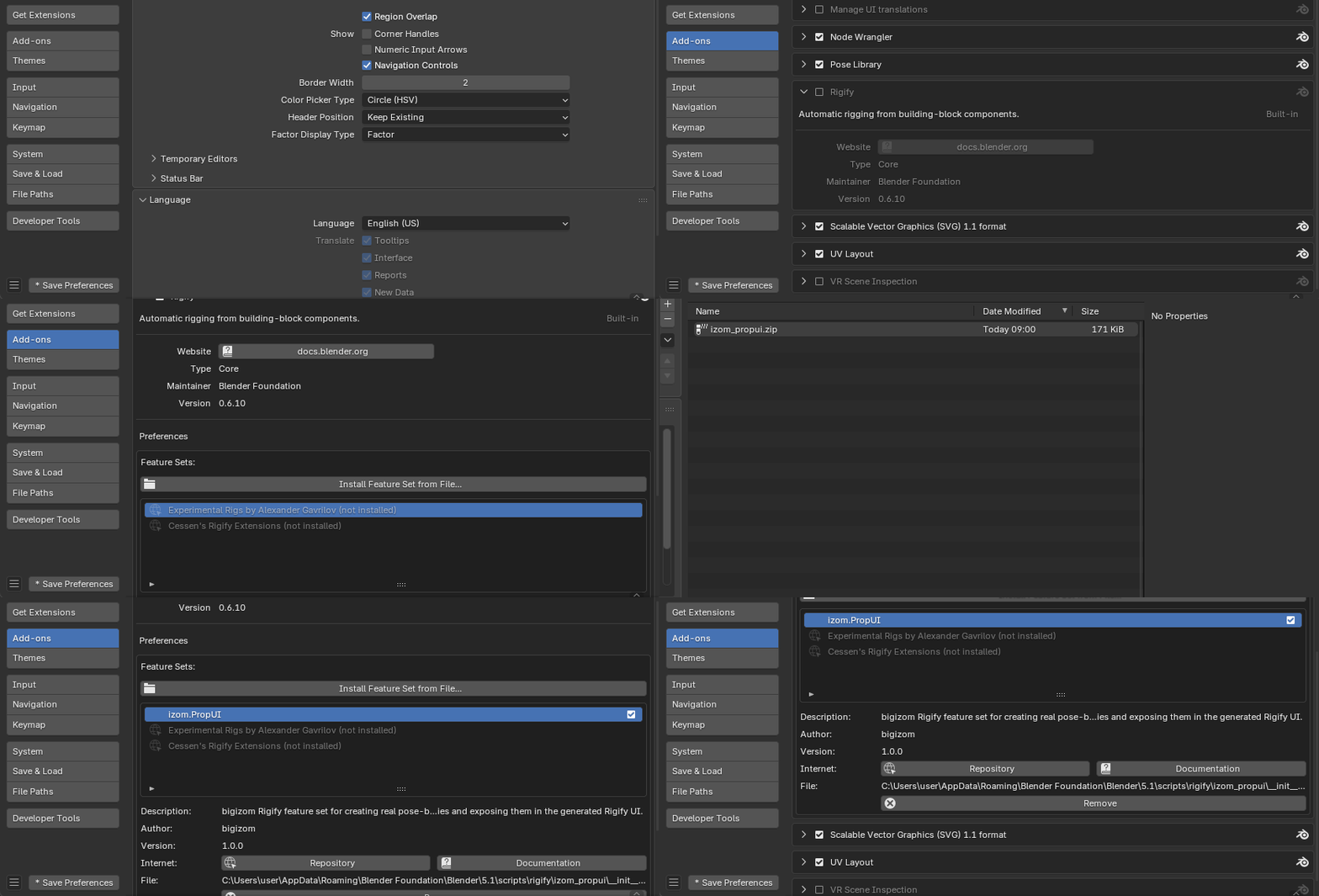
Install izom.PropUI from Blender Preferences and add it as an external Rigify feature set.