🎨 Generated Layout
Generated Layout is a separate editor for arranging how entries appear in the generated Rig UI. It controls row order, row grouping, and column placement — without changing the Entry List hierarchy itself.
Layout Editor
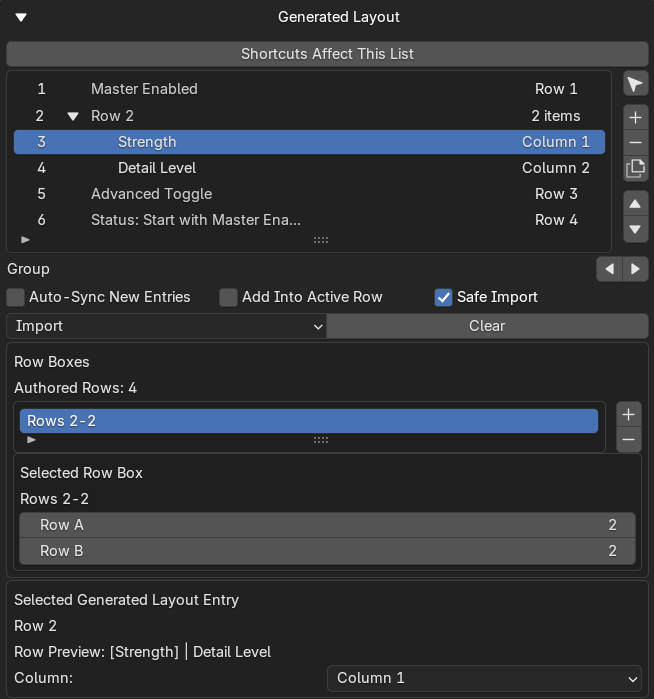
Generated Layout can organize authored rows, shared rows, and row-box groups without changing the source Entry List.
Key concept
Generated Layout does not change the Entry List. It only controls how entries appear in the generated Rig UI.
The layout editor stores Layout Items, Layout View Items, Row Headers (editor-only items for shared rows), row member order, row boxes, and collapsed row groups. The editor presents a flat row-group view, not a true tree.
Available operations
Import and management:
- Import Entry List items into layout
- Replace-import the whole layout from the current Entry List order
- Clear layout
- Add selected Entry List entry into layout
- Remove layout item (without deleting the source entry)
- Duplicate layout item or row group
- Move layout item or row group
Row and column operations:
- Select corresponding Entry List entry
- Assign column inside a row
- Group a top-level row into the previous or next row
- Ungroup a child out above or below its row group
- Ungroup an entire row into separate single-entry rows
Auto settings:
- Auto-sync of newly created Entry List entries
- Safe import (skip entries already present)
- Add into active row
Import and Replace Import
The Layout Import menu provides two modes:
- Import — appends Entry List items into Generated Layout. With Safe Import on, entries already present are skipped.
- Replace Import — clears Generated Layout and rebuilds it once from the current Entry List order.
Add Into Active Row: when enabled, imported entries are inserted into the current active row after the active layout item. When disabled, they become a new top-level row after the active row.
Auto-Sync New Entries: when enabled, newly created Entry List entries are automatically appended into Generated Layout.
Row Grouping
Rows can be single-entry rows or shared rows containing multiple entries. Shared rows get an editor row header that can be collapsed or expanded.
Grouping actions:
- Group a selected top-level entry into the previous or next row
- Move a grouped child out above or below its current row
- Ungroup an entire row into separate single-entry rows
| Action on... | Behavior |
|---|---|
| Remove a row header | Does not delete entries — ungroups the row into single-entry rows |
| Duplicate a row header | Duplicates the whole row group |
| Duplicate a normal item | Duplicates only that layout item reference |
| Move a row header | Moves the whole row |
| Move a shared-row child | Swaps its column position inside that row |
| Move a single-entry row item | Moves the whole row |
Columns
Each layout item has a row index, column index, and column position enum. You can set any item to Column 1, Column 2, etc. inside its current row. Single-entry rows stay in Column 1. Column placement is 1-based and left-to-right.
📦 Row Boxes
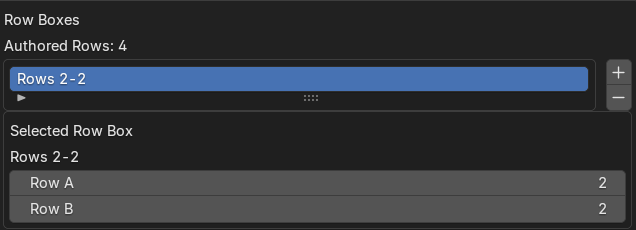
Detailed Generated Layout editing includes column assignment, row previews, selected-row details, and explicit box ranges.
Row Boxes are authored row-range wrappers for the managed section. Each box is defined by a Row A and Row B pair.
Row ranges are normalized to valid authored row bounds. Only nested or fully disjoint row boxes are supported — duplicate ranges are invalid, and partial overlaps are invalid.
Row boxes apply only to the managed generated section, not the native passthrough section.
Operators: Add Generated Layout Row Box, Remove Generated Layout Row Box.