📋 Entry Authoring
Everything about creating and configuring entries: types, custom-property settings, defaults, copy tools, and editor controls.
Entry Types
- FLOAT
- Floating-point custom property.
- INT
- Integer custom property.
- BOOL
- Boolean custom property.
- TEXT
- A display-only row shown in the generated UI without an interactable property.
Text entries
Text entries do not create a real custom property and do not sync to the metarig as a property. However, they can still live in the hierarchy, appear in Generated Layout, use conditional text rules, and receive indent, row grouping, section styling, and row boxes.
Entry List Editor
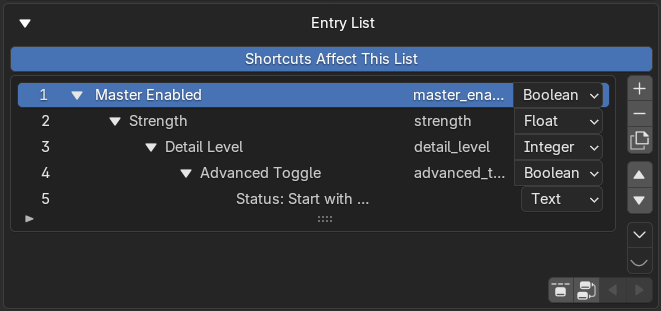
The Entry List is the main authoring surface for property rows, hierarchy, type assignment, and structural editing.
The Entry List is the main authoring list. It stores every managed property entry and text row, along with hierarchy, editor hidden/collapse state, display labels, property IDs, and prop types.
Visible columns
Each row shows an index, label, property ID, and prop type. Text rows show a derived display name when their label is empty. Parent items can show collapse/expand arrows, and hidden descendants disappear from the editor when a parent is hidden or collapsed.
Selection
Click selects one item, Shift-click selects a range, and Ctrl-click toggles selection. Multi-select is supported, and most structural operators work on selected root blocks rather than every child individually.
Structural operators
| Operator | Description |
|---|---|
| Add Entry | Inserts after the active entry block, or at the end if nothing is active |
| Remove Entry | Promotes unselected children to the removed entry's parent |
| Duplicate Entry | Duplicates selected root blocks |
| Move Entry Up / Down | Moves selected entry blocks together with their child subtrees |
| Set Parent | Direct parent picker |
| Clear Parent | Removes the parent assignment |
| Unparent Direct Children | Unparents only immediate children |
| Unparent All Children / Descendants | Unparents the entire subtree |
| Indent Entry | Increases nesting depth |
| Outdent Entry | Decreases nesting depth |
| Toggle Entry Collapse | Collapses or expands a parent in the editor (does not affect generated output) |
| Import From Active Bone (Append) | Appends entries from another bone |
| Replace From Active Bone | Clears the list and imports from another bone |
| Remove All Entries | Removes every entry |
Hide / show operators
| Operator | Description |
|---|---|
| Hide / Show Active | Toggles the active entry's editor visibility |
| Hide / Show by entry type | Filters by FLOAT, INT, BOOL, or TEXT |
| Hide / Show Parents | Toggles parent entries |
| Hide / Show Active Children | Toggles the active entry's children |
| Hide / Show All Children | Toggles all child entries |
| Show Only Selected | Hides everything except the current selection |
| Unhide All | Restores all entries to visible |
Importing from Active Bone
The Entry Tools menu supports importing supported custom properties from the active metarig pose bone.
Import modes:
- Append — adds imported properties to the current Entry List. With Safe Import on, entries already present are skipped.
- Replace — clears the current Entry List before importing.
What gets imported: supported custom properties only (FLOAT, INT, BOOL). Internal properties like _RNA_UI and unsupported types are skipped. Each imported entry gets its label from the property key, its tooltip from existing UI data, and all float/int metadata (default, min/max, soft min/max, step, precision, subtype, library-overridable state). Duplicate prop IDs are auto-renamed.
Tip
If Generated Layout Auto-Sync New Entries is enabled, imported entries are also inserted into the Generated Layout automatically.
Selected Entry: Common Features
The Selected Entry editor appears for the active entry and provides access to all of its settings.
Common sections: Parent display and Set Parent / Clear Parent, entry type selector, Rig UI section, Custom Prop section, Type Defaults section, Copy Settings section.
Common fields on every entry: UID, Parent UID, Property ID, Label, Tooltip, Property Type, Hidden In Editor, Indent In Rig UI, Generated UI Indent Amount, visibility/availability rules and inheritance depth, shared-row hidden mode.
Editor section visibility
The global toggles Hide Rig UI Section, Hide Custom Prop Section, Hide Type Defaults, and Hide Copy Settings only hide editor sections — the stored settings remain active underneath.
Property ID, Label, and Tooltip
- Property ID
- The internal custom-property key stored on the generated pose bone. Must be unique among managed non-text entries. Blank IDs are auto-filled during normalization, and duplicates are auto-suffixed during sync/generation. Limit: 63 characters.
- Label
- The animator-facing label shown in the generated Rig UI. Can also be edited directly in the Entry List. Limit: 255 characters.
- Tooltip
- A static tooltip shown for the property in the generated Rig UI. Generated tooltip output is normalized. Limit: 512 characters.
Note
Dynamic labels can change the displayed label at runtime, but the tooltip always stays at the base tooltip.
Float Entry Features
FLOAT entries expose the following settings:
Custom property settings: Default, Min, Max, Soft Limits toggle, Soft Min, Soft Max, Step, Precision, Subtype, Library Overridable, Use Slider.
Dynamic labels: Per Value Labels, Per Other Entry State/Value Labels.
Hierarchy: child visibility rules, child availability rules, generated UI indent, shared-row hidden mode.
Float subtypes
| None | Pixel | Unsigned |
| Percentage | Factor | Angle |
| Time (Scene Relative) | Time (Absolute) | Distance |
| Camera Distance | Power | Temperature |
| Wavelength | Color Temperature | Frequency |
Note
The default value is always clamped into min/max. Soft limits are separate UI metadata and do not change the hard min/max. Step and Precision are Blender custom-property metadata, not row-layout tools.
Integer Entry Features
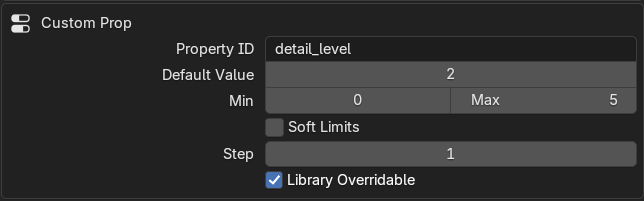
Integer custom property settings include default, min/max, soft limits, step metadata, and library-overridable state.
INT entries support the same settings as FLOAT entries except they lack Precision and Subtype.
Custom property settings: Default, Min, Max, Soft Limits toggle, Soft Min, Soft Max, Step, Library Overridable, Use Slider.
Dynamic labels: Per Value Labels, Per Other Entry State/Value Labels.
Hierarchy: child visibility rules, child availability rules, generated UI indent, shared-row hidden mode.
Boolean Entry Features
BOOL entries support:
Custom property settings: Default, Library Overridable.
Display: UI Style (Checkbox or Toggle Button), Per State Labels (When Off / When On).
Dynamic labels: Per Other Entry State/Value Labels.
Hierarchy: child visibility rules, child availability rules, generated UI indent, shared-row hidden mode.
Note
If a per-state label is blank, it falls back to the entry's general label or prop ID fallback.
Text Entry Features
TEXT entries are display-only rows that do not create custom properties. They can serve as labeled text rows, spacers, centered separator lines, boxed notices, or alert-styled notices.
Styling: Alignment (Left / Center / Right), Body Mode (Text / Center Line), Vertical Alignment (Top / Middle / Bottom), Link Spacing, Linked Spacing proxy, Top Spacing, Bottom Spacing, Line Above, Line Above Position, Line Below, Line Below Position, Use Box, Alert Style, Before Icon, After Icon.
Dynamic text: Per Other Entry State/Value Text.
Hierarchy: generated UI indent, shared-row hidden mode.
Line position options for Line Above / Below: Top, Middle, Bottom.
Spacing behavior
- Link Spacing only truly links spacing when vertical alignment is Middle.
- Top alignment suppresses active top spacing.
- Bottom alignment suppresses active bottom spacing.
If a text row has no explicit label, the Entry List shows a derived editor name like [Spacer], [Center Line], [Line Above], [Top 1], [Box], or [Alert].
Generated Rig UI Indent

Any entry can opt into manual indent in the generated rig UI, with shared-row indent ownership handled by the leftmost entry.
Any entry can use manual indent in the generated Rig UI via the Indent In Rig UI toggle and Indent Amount slider (range: 0.1 to 10.0).
Shared-row rule
In shared generated rows, the leftmost authored entry controls the row indent. Non-left entries show an info operator explaining that the row indent is owned by the left entry.
💾 Type Defaults
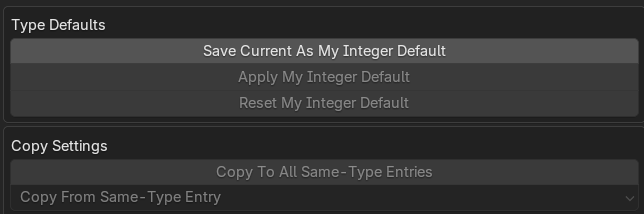
Type defaults and same-type copy tools make it faster to reuse consistent settings across large setups.
Type defaults are personal defaults for each entry type, saved in Blender user config at CONFIG / izom_propui / type_defaults.json.
Actions: Save Current as My \<Type> Default, Apply My \<Type> Default, Reset My \<Type> Default.
Type defaults capture "safe behavior settings" — not the entry's identity (UID, prop ID, label, tooltip).
Saved fields
indent_in_generated_ui, generated_ui_indent_amount, bool_child_visibility, number_child_visibility, visibility_inheritance_depth, shared_row_hidden_mode, visibility_match_float/int, visibility_range_max_float/int, bool_child_availability, number_child_availability, availability_inheritance_depth, availability_match_float/int, availability_range_max_float/int.
All common fields plus: default_float, min_float/max_float, use_soft_limits, soft_min_float/soft_max_float, step_float, precision, float_subtype, slider, library_overridable.
All common fields plus: default_int, min_int/max_int, use_soft_limits, soft_min_int/soft_max_int, step_int, slider, library_overridable.
All common fields plus: default_bool, bool_ui_style, library_overridable.
All common fields plus: text_alignment, text_body_mode, text_link_spacing, text_vertical_alignment, text_top_spacing/bottom_spacing, text_line_above/below, text_line_above_position/below_position, text_use_box, text_alert, text_icon/text_icon_after.
Copy Settings Between Same-Type Entries
The Copy Settings section lets you replicate safe behavior settings between entries of the same type — not identity fields like UID, prop ID, label, or tooltip.
- Copy To All Same-Type Entries — copies the selected entry's settings to all other same-type entries.
- Copy From Same-Type Entry — lets you choose a source entry and copies its settings onto the selected entry.
Editor Settings
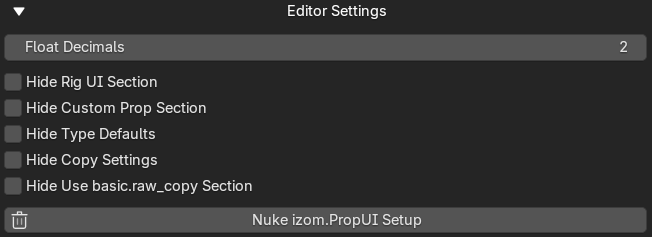
Editor Settings cover float display precision, section visibility toggles, and the full Nuke reset action.
| Setting | Description |
|---|---|
| Float Decimals | How many decimal places are shown while editing (0–6). Affects minimum editor threshold/proxy stepping. Does not change the generated prop's Precision metadata. |
| Hide Rig UI Section | Hides the Rig UI section in the editor |
| Hide Custom Prop Section | Hides the Custom Prop section in the editor |
| Hide Type Defaults | Hides the Type Defaults section |
| Hide Copy Settings | Hides the Copy Settings section |
| Hide Use basic.raw_copy Section | Hides the raw_copy section |
| Nuke izom.PropUI Setup | Full reset — see Sync, Cleanup, and Reset |
Character-Limit Notices
The editor draws character-limit warnings when a text field reaches its allowed input limit. This applies to section titles, labels, tooltips, and boolean state labels.